3.1 Function Profile
Why should I use this form?
Use this form to create and maintain various Function Profiles.
Function profile is the job profile as defined and linked to a position. Every employee is mapped to one function profile or role.
What are the Pre-requisites?
N/A
Who can access this form?
This form shall be visible to all employees to whom the visibility is given in Setup HRMS ® Module Role Mapping/ Module Administration.
How to navigate to this form?
HR Foundation à Job Structure à Function Profile.
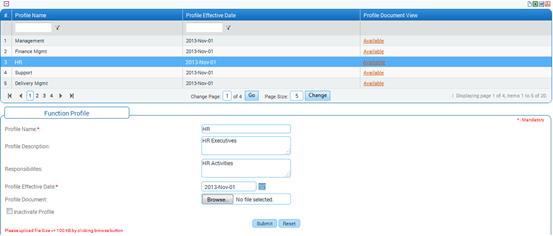
Figure 31 Function Profile
List of existing Function Profiles are shown in the grid. Use the filter section to filter records in the grid based on a condition.
Click the [+] icon on the left top of the grid to show / hide the grid.
Click the link ‘Available’ to view the attached profile document for the function profile.
Field guidelines are explained below:
|
Field Name |
Description |
|
Profile Name |
Enter Name of the Function Profile |
|
Profile Description |
Enter Description of the Function Profile |
|
Responsibilities |
Enter the Responsibilities that are attached to the Function Profile |
|
Profile Effective Date |
Select the Date from when the Function Profile will be in effect. This ensures that a profile is in effect only from the date chosen and there is no recruitment activity can start for this profile before this date. Note: This can be past or future or current date. |
|
Profile Document |
Select the profile document that needs to be attached to the Function Profile, by clicking the [Browse] button. On clicking this button, the ‘Choose File’ dialog box appears, allowing you to select the profile document. Note: · The Profile document should be less than or equal to 100 kb. · Only documents of type .xls, .doc, .pdf, .txt, .ppt can only be uploaded. |
Click [Submit] to save the Function Profile.
Click [Reset] to refresh the form.
Post Activity
The Function Profile created here will be available in Manage Position form.
To Modify a Function Profile,
Select the Function profile from the grid. Selected Function Profile will be populated in the form. Make necessary changes and click [Submit] to save the changes.
To Deactivate a Function Profile,
Select the Function profile from the grid. Selected Function Profile will be populated in the form. Select the option ‘Inactivate profile’. Click [Submit] to save the changes.
|
|
The Deactivate Profile check box will be available only when you select an existing Function Profile. It will not be available during creation of a Function Profile. |
Note: When you deactivate a function profile it will not appear in the drop down list in the ‘Manage Position’ form where you can attach a profile to a Position.
