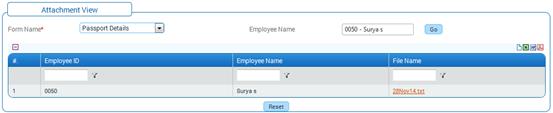
Attachments View
Why should I use this form?
This form facilitates employees to view the documents that have been uploaded, while working on any of the following forms:
· Local Conveyance Claim
· LTA Claim
· Medical Claim
· New Reimbursement Claim
· Authorised Signatory
· Employee Confirmation
· Initiate Query
· Leave Request
· Awards and Recognition
· Education Details
· Family Visa Details
· Passport Details
· Visa Details
· Course Registration
· Create Course Instance
What are the Pre-requisites?
Documents should be attached.
Who can access this form?
This form shall be visible to all employees to whom the visibility is given in Setup HRMS ® Module Role Mapping/ Module Administration.
How to navigate to this form?
HR Foundation à Job Data à Attachment View.
Select the Form Name from the drop down field. This field will have values only if any documents have been attached for the employee.
Employee Name shows the logged in employee’s name, by default. The HRFAC or Manager can view the details of the reportees/employees under their facilitation. Enter ‘@@’ in the Employee Search field, which populates list of employees in a drop down, as shown here:
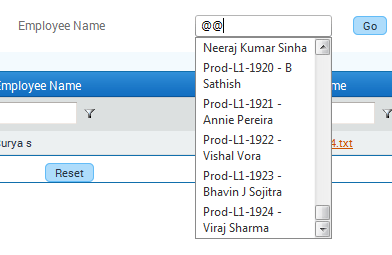
Select an employee from this field.
You can also enter employee ID or Name to filter the search. For example, in the screenshot given below, the employee ID has been entered, and hence the drop down is showing records based on the entered employee ID.

Click [Go]. On clicking this button, documents attached for the selected employee under the selected form name is populated in the grid.
 If
[Go] button is clicked without selecting any employee, documents
attached for all the employees (under the logged in employee’s facilitation)
under the selected form name is populated in the grid. Click the link
in the File name to view the attached file.
If
[Go] button is clicked without selecting any employee, documents
attached for all the employees (under the logged in employee’s facilitation)
under the selected form name is populated in the grid. Click the link
in the File name to view the attached file.