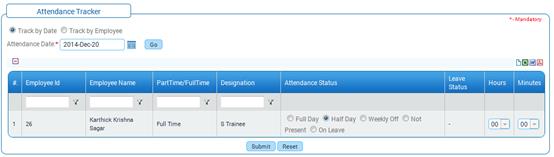
Attendance Tracker
Why should I use this form?
This form can be used to mark attendance/leave entries for employees under the facilitation of logged-in employee. This would be useful particularly for factory environment or BPOs, where the employees either do not have a system to mark their attendance or do not have access to the software due to software restriction.
Note: This can be done only for employees whose Attendance Type is set as ‘Tracker’.
What are the Pre-requisites?
N/A
Who can access this form?
This form shall be visible to all employees to whom the visibility is given in Setup HRMS ® Module Role Mapping/ Module Administration.
How to navigate to this form?
Self Service à Time & Attendance Management à Attendance Tracker.
Attendance can be marked either by date or by employee.
Track by Date – Select this option to mark attendance for employees for a selected date.
Track by Employee – Select this option to mark attendance for selected employee.
Track by Date
· Select the option ‘Track by Date’.
· Select the date for which attendance needs to be marked for employees.
· Employees whose attendance type is set as ‘No’ gets populated in the form.
· Select the appropriate Attendance Status for each employee.
· Full Day – indicates that the employee is on a full day leave on the selected date.
· Half Day – indicates that the employee is on a half day leave on the selected date.
· Weekly Off – indicates weekly off on the selected date for the employee.
· Not present – this means that the employee is absent on that date.
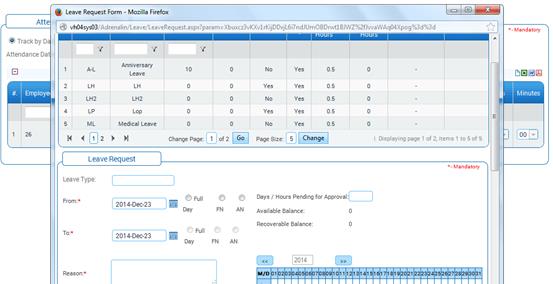
· On Leave – this option is given to initiate a leave request for the employee. On clicking this option, the Leave Request form is shown as a popup window.
Track by Employee
· Select the option ‘Track by Employee’.
· Enter ‘@@’ to select required employee.
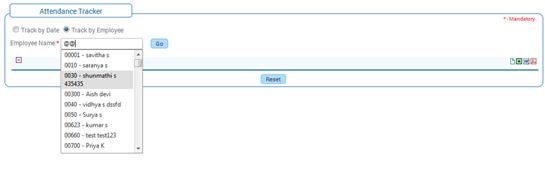
On selecting the employee, dates for the current pay period is populated in the form, as shown below along with Export options:
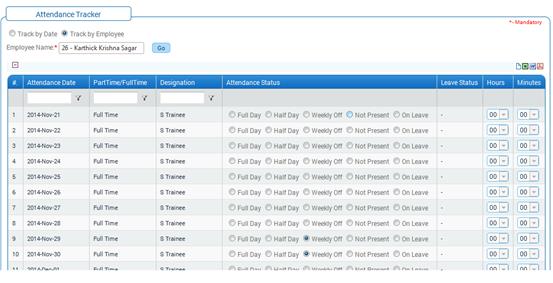
Dates are populated based on the parameter “ATT_TRACK_START” & “ATT_TRACK_PAYPERIOD” in the Adrenalin Configuration Editor form.
· Select the appropriate Attendance Status for the selected employee for each date.
· Click [Submit] to save the details.
· Click [Reset] to refresh the form.