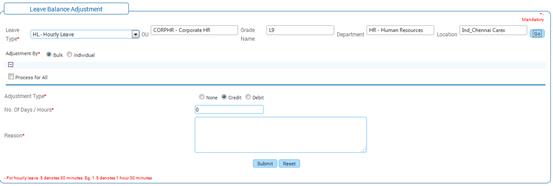
Leave Balance Adjustment
Why should I use this form?
This form facilitates the adjustment of leave balance by debiting or crediting the number of days of leave for individual employees or a set of employees. The employees in the dropdown list are based on the leave type and gender. For example, Maternity leave is applicable only to female employees. When this leave type is selected, only female employees list will be displayed.
What are the Pre-requisites?
Leave Type should be available.
Who can access this form?
This form shall be visible to all employees to whom the visibility is given in Setup HRMS ® Module Role Mapping/ Module Administration.
How to navigate to this form?
Workforce Administration à Absence à Leave Balance Adjustment.
The field guidelines are as follows:
Field |
Description |
Leave Type |
Select Leave Type from the drop-down list. This field displays all the available Leave Types along with the Leave Code. |
OU |
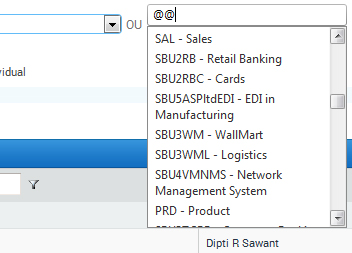
This is for selecting employees based on OU. For example, if you want to effect leave balance adjustment for employees in a particular OU, then that OU can be selected here, based on which the employees list is populated in the form. Enter ‘@@’ in the OU field, which populates list of OUs in a drop down, as shown here:
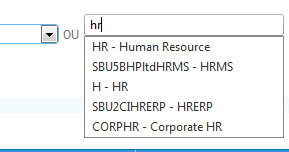
You can also enter few characters of the OU Name to filter the search. For example, in the screenshot given below, the OU Name has been entered as ‘HR’, and hence the drop down is showing records based on the entered text.
Select the required OU from the drop down. |
Grade |
This is for selecting employees based on Grade. For example, if you want to effect leave balance adjustment for employees in a particular Grade, then that Grade can be selected here, based on which the employees list is populated in the form. Follow the same procedure as mentioned above, to choose a Grade. |
Location |
This is for selecting employees based on location. For example, if you want to effect leave balance adjustment for employees in a particular location, then that location can be selected here, based on which the employees list is populated in the form. Follow the same procedure as mentioned above, to choose Location. |
Adjustment By |
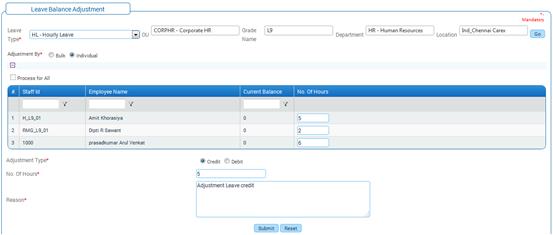
Select if bulk adjustment or individual adjustment is being made. If Individual adjustment is selected, system gives the provision for entering number of leaves for individual employees, Note: It accepts numeric values only. The width of this field is limited to 5.Half a day adjustment can be mentioned as 0.5 If Bulk adjustment is selected, the number of leave will be same for all the selected employees. Note: It accepts numeric values only The width of this field is limited to 6. Half a day adjustment can be mentioned as 0.5 |
Process for All |
Select this check box to credit/debit the number of days to all employees shown in the grid. For example, if the grid shows employees in five pages, then if this check box is selected, it will credit/debit the days to all employees in these 5 pages. If the check box is not selected, then it will select all the employees in the current page only. Note: This check box will be enabled only if ‘Adjustment by’ is selected as ‘Bulk’ |
Adjustment Type |
Select the Adjustment Type. Select “Credit” or “Debit” to specify if the selected leave has to be credited or debited for the selected employee(s). |
Number of days |
Enter the Number of days of Leave to be credited or debited. In the case of Individual adjustment, the number of days will have to be entered in the column next to the selected employee. (See figure 11 below for Individual Adjustment). Note: It accepts numeric values only The width of this field is limited to 6. Half a day adjustment can be mentioned as .5 |
Reason |
Enter the reason as to why the balance is adjusted. Note: It accepts alpha numeric & special character. The width of this field is limited to 300. |
The screen below shows the Individual Leave Balance Adjustment.
In the case of Bulk adjustment, after selecting debit/credit, enter the number of days in ‘Number of days’ field (row).
Enter reason for Leave balance adjustment.
Click [Submit] to save the details.
Click [Reset] to refresh the form.
Post Activity
On submission, the number of days will be credited or debited based on the adjustment type for the selected employees.