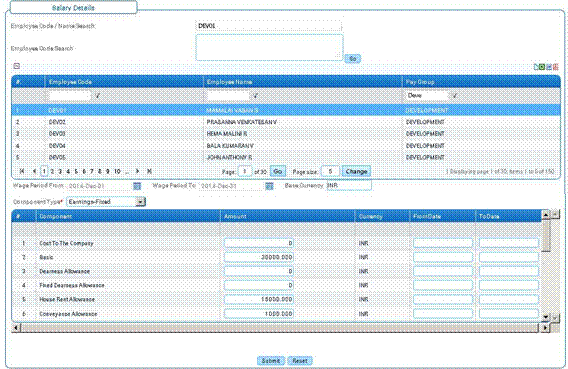
Salary Details
Why should I use this form?
Use this form to enter the salary for any selected employee on a month-on-month basis.
What are the Pre-requisites?
· Pay group should be available
· Component should be available
Who can access this form?
This form shall be visible to all employees to whom the visibility is given in Setup HRMS ® Module Role Mapping/ Module Administration.
How to navigate to this form?
Payroll Management à Salary à Salary Details.
· ‘Employee code/Name Search’ for whom the salary data needs to be entered/edited can be selected by ‘@@’in the Employee Code/Name Search field, separated by comma. Click on Go button to display the employees in the grid. In the same way by entering employees code in ‘Employee Code Search’ field and clicking Go displays the employees in the grid. If no employee code is entered and if Go button is clicked, then all the employees will be displayed in the grid.
· All the entered employees will be displayed in the grid.
· Select the employee from the grid.
· Current wage period, and the Base Currency is shown.
· Select Component Type from the drop down field. On selecting the Component Type, list of components under the selected Component type is populated in the form.
· Enter Amount for the components which are applicable for the selected employee.
· On selection of component type as earnings/deductions fixed, the from date and to date will be displayed. This will enable the employees entered value to be considered for a specific period.
· On selection of adjustment, the reason for the adjustment can be selected from the Remarks column. In case the reason is not available in the dropdown, the required reason can be created by clicking on the ellipse button.
· Click [Submit] to save the details.
· Click [Reset] to refresh the form.