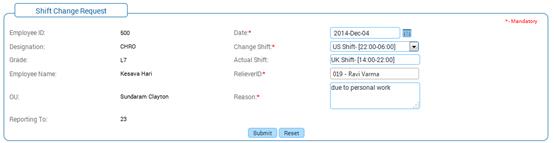
Shift Change Request
Why should I use this form?
This form can be used by employees to request for change in their shift on any day.
What are the Pre-requisites?
· Employee should be in any group.
· Shift should be assigned.
Who can access this form?
This form shall be visible to all employees to whom the visibility is given in Setup HRMS ® Module Role Mapping/ Module Administration.
How to navigate to this form?
Self Service à Time & Attendance Management à Shift Change Request.
Details of employee such as ID, Designation, Grade, Name, OU, Reporting To are shown by default.
1. Select the Date when the shift needs to be changed. If no shift is available on the selected date, then system shows alert message to the effect.
2. On selecting the Date and if shift is available for the selected date, then the actual shift is shown in ‘Actual Shift’ field.
3. ‘Change Shift’ shows the list of available shifts that are mapped for the employee’s group. Select a Shift which needs to be the changed shift.
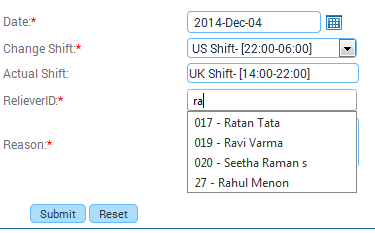
4. “Reliever ID” Enter ‘@@’ in the Reliever ID field, which populates list of employees in a drop down, as shown here:.
5. Employee whom has been selected here will work on the mentioned date on behalf of employee who is requesting the shift change
6. Employee can be searched by using Employee ID, Name and @@. as shown below.
|
The Reliever should be assigned to some shift on the selected date |
7. Enter Reason for requesting the change.
8. Click [Submit]. On submission, it will be sent for approval, as per the workflow defined.
9. Click [Reset] to refresh the form.
