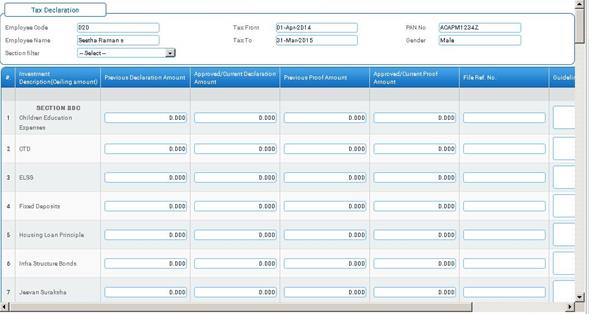
Tax Declaration
Why should I use this form?
Use this form to capture the details of the Tax declaration amounts in various sections to avail Tax exemptions.
What are the Pre-requisites?
· Tax component in detail required.
Who can access this form?
This form shall be visible to all employees to whom the visibility is given in Setup HRMS ® Module Role Mapping/ Module Administration.
How to navigate to this form?
Payroll Management à Tax à Tax Declaration Update.
Tax details under each investment description will be displayed based on the component type marked as user entry for tax components. Details such as the Employee code, Employee name, Tax From and To dates, PAN Number and Gender of the employee is also populated automatically.
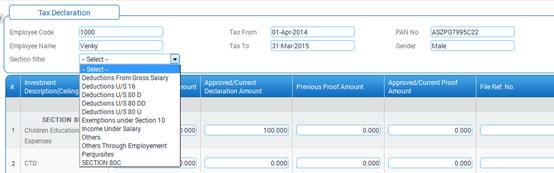
By default, this form shows all the investment options under each section as mapped while defining the tax component in tax component master. The Section Filter field facilitates filtering and viewing the investment options section-wise. For example, if you want to view only the options available under Deductions U/S 16, then you can choose that section from this filter.
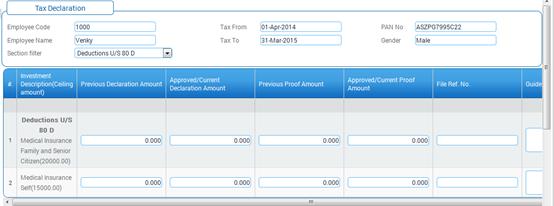
Now the Tax Declaration form shows only the options available under the selected section. Please refer the below image.
The Income/loss from House Property has been given in a separate section in this form.
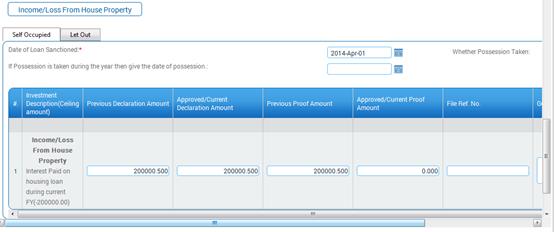
The field guidelines are as follows:
Field Name |
Description |
Declaration Amount |
Enter the amount to be declared |
Proof Amount |
Enter the amount that is submitted with proof |
File Ref No. |
Enter the reference number for the corresponding investment |
Guidelines |
This displays the guidelines for filling up the details |
Let Out Property
Employee can declare his let-out property income, municipal tax, interest value and Pre-EMI value. Based on these declarations let out final value will be arrived for Tax Computation.
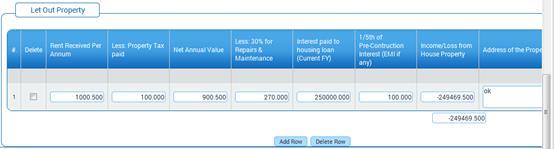
The field guidelines are as follows:
Field Name |
Description |
Rent Received Per Annum |
Enter the rent amount received per annum. |
Less Property Tax paid |
Enter the amount paid for Property tax / Municipal tax. |
Interest paid to housing loan (Current FY) |
Enter the interest amount paid for housing loan in the current financial year. |
1/5th of Pre-Construction Interest (EMI if any) |
Enter the 1/5th of Pre-Construction interest amount(if any). |
Self Occupied (80EE)
· In FY 2013-14 new section (80EE) introduced for the first time to the property buyers and it will be applicable for self occupied property only.
§ This will be applicable only for the FY 2013-14
§ In 80EE employee will get additional benefit of Rs.100000 (Chapter 6A) for self-occupied property in addition to an exemption of Rs.150000 (Section 24)
§ Section80EE will be applicable subject to below conditions
v The loan has been sanctioned by the financial institution during the period beginning on the 01-April-2013 and ending on the 31-March-2014.
v The amount of loan sanctioned for acquisition of the residential house property does not exceed Twenty-Five lakh rupees.
v The value of the residential house property does not exceed Forty lakh rupees.
v The Employee does not own any residential house property on the date of sanction of the loan.
Field Name |
Description |
Date of Loan Sanctioned |
Enter the date of loan sanctioned. |
Residential House Property Value |
Enter the amount of residential house property value. |
Loan Amount Value |
Enter the amount of loan value. |
Already Owned Any House Property(Y/N) |
Mention whether already you have owned house property or not, by choosing Y or N from the dropdown. |
The field guidelines are as follows:
Field Name |
Description |
Declaration Amount |
Enter the amount to be declared |
Proof Amount |
Enter the amount that is submitted with proof |
File Ref No. |
Enter the reference number for the corresponding investment |
Guidelines |
This displays the guidelines for filling up the details |
Click [Submit] to save the details.
Click [Reset] to refresh the form.
Post Activity
On submission, it would be sent for approval based on the configuration settings, and it would be considered during Tax computation.
Details of tax declarations made can be viewed as a report using the Tax Declaration History under Self Task ® IT Declaration.
Note:-
80U & 80DD Functionality changes
User needs to declare percentage to give Disability Exemption under sections 80U (Self) and 80DD (Dependent) for the employee. Based on the declared percentage exemption will be given as per the below slab.
v 0% to 39% exemption will be ZERO
v 40% to 79% exemption will be Rs.50000
v 80% & above then exemption will be Rs.100000