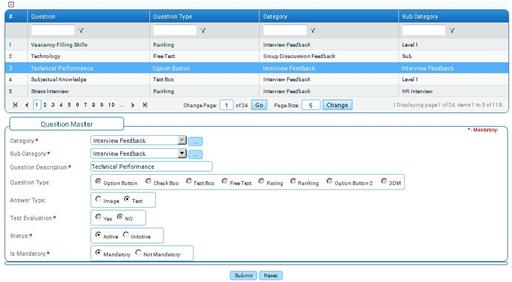
Question Master
Why should I use this form?
Use this form to manage question bank, which will be used for surveys and interview tests. These questions can be mapped to various categories and sub categories, and each question will have parameters such as Question Type, Status, No of choice, etc.
What are the Pre-requisites?
N/A
Who can access this form?
This form shall be visible to all employees to whom the visibility is given in Setup HRMS ® Module Role Mapping/ Module Administration.
How to navigate to this form?
HR Foundation à Setup Adrenalin à Question Master.
List of existing questions are shown in the grid. Use the filter section to filter records in the grid based on a condition.
Field guidelines are explained below:
Field Name |
Description |
Category |
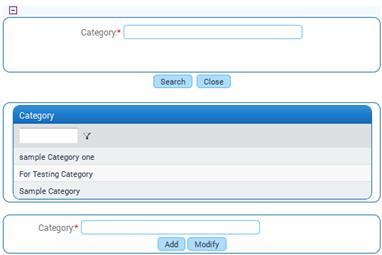
Select the Category. If the required Category is not available in this field, then click the ellipse button to add a new category. On clicking the ellipse button, the Search Expert popup window appears, allowing adding new Categories.
· Enter Name of the Category · Click [Add]. · Double-click the Category to choose the category. |
Sub-Category |
Select Sub-category from the drop down field. If the required Sub-category is not available in this field, then click the ellipse button to add new Sub-category. On clicking the ellipse button, the Search Expert popup window appears, allowing adding new Sub categories |
Question Description |
Enter question. |
Question Type |
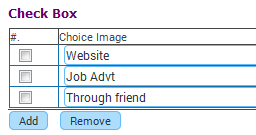
Select the question type. Check box – Ifan item is checked, it means it’s enabled. If the item is unchecked, it’s disabled. Click the check-box to change this status. Normally, multiple items from the list can be selected.
Option Button – Use these buttons to choose from a list. Like check boxes, click to change the item that is in use. Normally, only one item from the list can be selected.
Text Box – This type allows the user to create questions for which the respondent is required to fill out text, by typing in them.
Free Text – This type allows the user to create questions for which the respondent is required to fill out text, by typing in them. It allows multiple lines of text to be entered.
Ranking – A Ranking Question is a question that requires users to put all items in the correct rank. There is a minimum of one item and maximum of 10 items for each Ranking Question. There is only one correct answer to this type of question since all items must be correctly ordered.
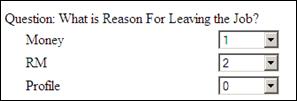
Rating – To rate respondent choices, you can use the Rating Scale question type. When creating this question type, you assign a "weight" or value to each choice.
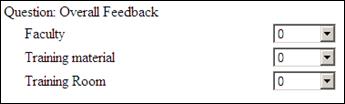
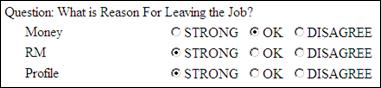
Option Button 2 – This type allows the user to provide multiple sub-choices, and capture any one option for individual choices. In the example below, each has got three choices and the respondent can choose any one of the choice in each.
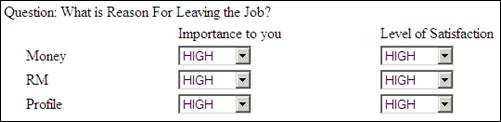
3DM – This type allows the user to create a 2 drop-down to present the answer choices in a 3DM question-type.
|
Answer type |
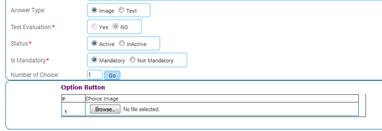
Select Answer type for the question. Note: If it is selected as ‘Image’, then you will be given option to choose images which will get displayed while answering to this question.
Click the “Browse” button to choose image. |
Status |
Select Status of the question. By default, while creating a new question, the status will be ‘Active’. |
Is Mandatory |
Select if answering this question is mandatory. If this option is selected as ‘Yes’, then the user should provide an answer for this question. Otherwise system will not allow to proceeding to next question. |
No of choice |
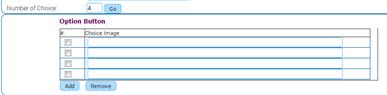
Enter how many number of choices you want for the question and click [Go]. You will see that many number of rows in the form to enable providing choices for the question. In the below screenshot, the number of choice is given as ‘4’, hence 4 blank rows are shown.
You can also add / remove any choice by clicking ‘Add’ / ‘Remove’ button. |
Click [Submit] to save the details.
Click [Reset] to refresh the form
Post Activity
Questions created here will be available in Template Master form.