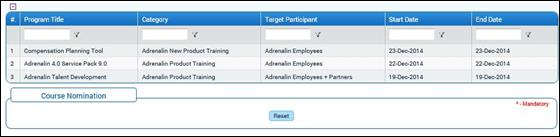
Course Nomination (Self)
Why should I use this form?
Whenever a course is scheduled, the employees can nominate themselves for undergoing the training. This will be approved by the reporting manager.
Note: Courses will be displayed in the form based on the applicability set for the course. For example, if a course is registered for employees belonging to ‘Bangalore’ location, only those employees will be able to see that course in their Course nomination form.
What are the Pre-requisites?
Training should be scheduled.
Who can access this form?
This form shall be visible to all employees to whom the visibility is given in Setup HRMS ® Module Role Mapping/ Module Administration.
How to navigate to this form?
Self Service à Training Management à Course Nomination.
Select the course for which nomination has to be done. Details of the selected course will be displayed.
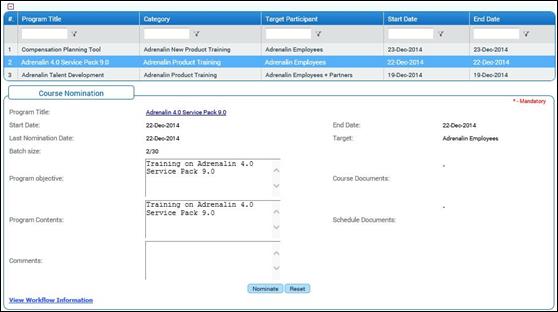
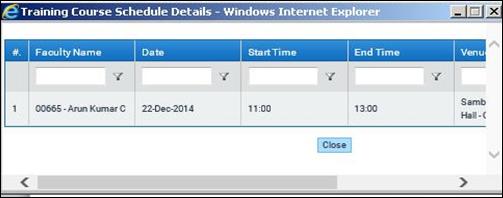
By clicking the Program Title in Course Nomination form new screen will pop up with Faculty Name, Start Date, Start Time, End Time and Venue.
· Enter the Program objective
· Enter the Program Contents
· Enter Comments if any
· click [Nominate].
· Click [Reset] to refresh the form
Routing and Approval
On submission, the form will be sent to the Manager for approval. On approval/rejection, mail intimation will be sent to the initiator and approver.
Note: All scheduled courses will not display for all employees, based on mapping done in Course Registration form the courses will be displayed for the employees and they can go for nomination of the courses.
Post Activity
Approved nominations will be available in Status of Course Schedule, Nomination Withdrawal, and Manager Nomination form.